The short answer
To use our online curriculum, your child needs a laptop or tablet with a modern browser, a reliable internet connection, and a quiet place to work. That is the whole hardware list. A headset helps for spoken guidance and a printer is optional. You do not need a collection of apps, a learning management system, and a separate tool for each subject.
Laptop, tablet, or phone
The deciding factor is how much your child writes. A laptop or a tablet with a keyboard case suits a child who types paragraphs, answers reading checks in full sentences, or drafts essays; typing a long response on glass is slow and discourages the child from writing more than a line. A plain touchscreen tablet is often easier for children of 5 to 7, who tap, drag, and talk more than they type. A phone works for a quick look at something but is too small for reading a long article or writing about it.
The age of the computer matters less than you might expect. An older laptop is usually fine for browser-based coursework, provided it can still install current browser updates. A machine that can no longer update is the one likely to show pages that do not load properly or audio that does not play.
A headset, a connection, and a place to work
A headset with a built-in microphone keeps spoken guidance clear in a busy house and keeps other family members from hearing every lesson. Wired headsets avoid the charging and pairing problems that wireless ones bring.
Internet trouble at home often comes from where the device sits rather than from the plan you pay for. Wi-Fi weakens through walls and floors, and a connection that works in the kitchen may stall in a back bedroom. A shared connection also slows down when someone else in the house is on a video call or downloading a large file.
Set up the screen so it does not cause strain
The American Optometric Association recommends placing the center of a screen about 15 to 20 degrees below eye level (roughly 4 to 5 inches) and 20 to 28 inches from the eyes, with windows and overhead lights positioned so they do not reflect off the display. For a child working at an adult-height table, that usually means a firm cushion on the chair, because the screen sits too high otherwise. The same association suggests the 20-20-20 rule: every 20 minutes, look at something 20 feet away for 20 seconds.
Keep the work and its record in one place
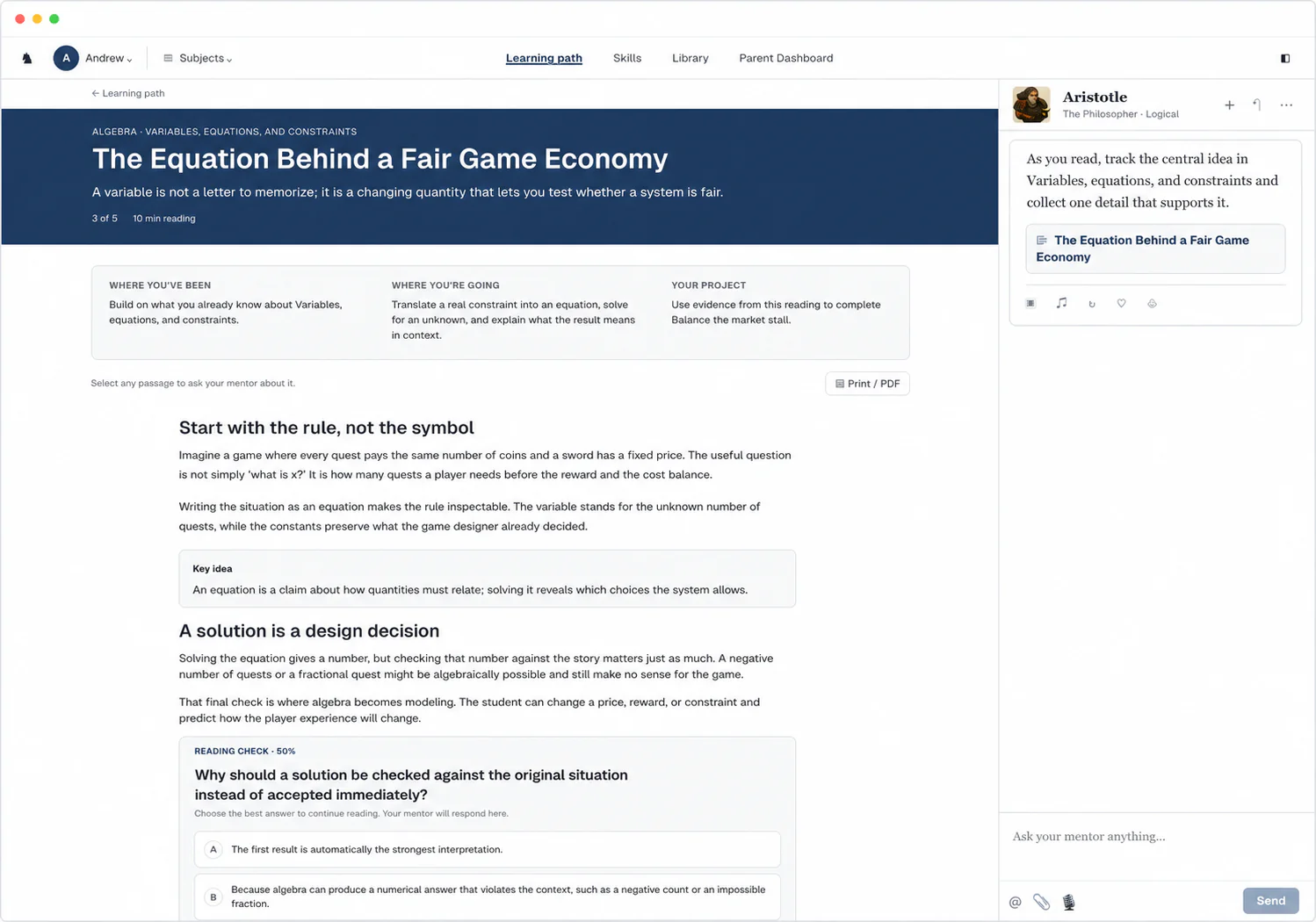
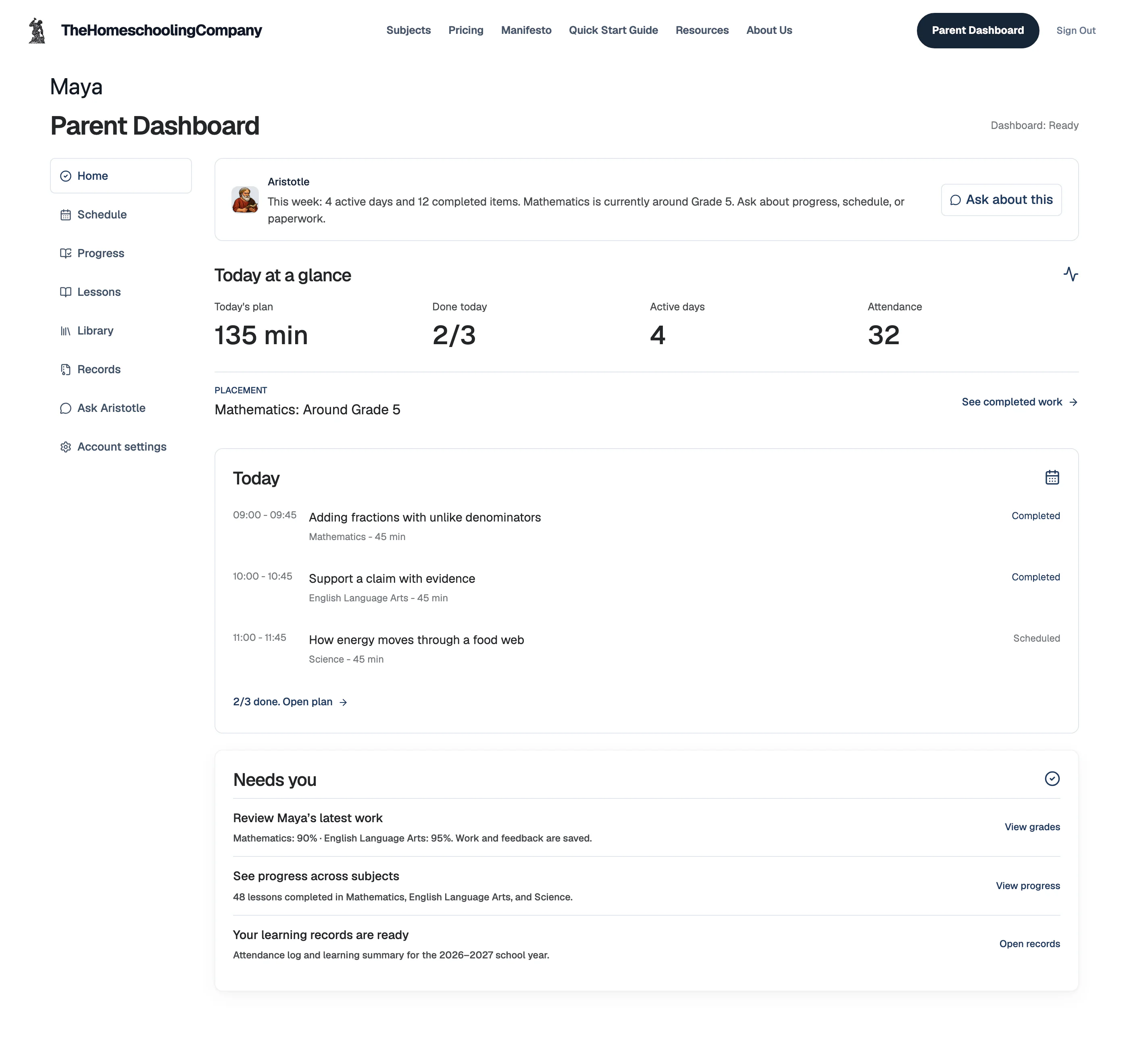
You may already have an app your child likes for math practice or a folder of writing they want to keep. When adding a coursework platform, check where the assignment, submitted answer, and feedback will live. Having them together makes it easier to see what a score refers to and return to an earlier piece of work. A useful platform holds:
- A placement step that suggests where the child can start.
- Lessons and projects that match the course and learner.
- Help that answers questions and notices when the child is stuck.
- Grading with feedback the moment work is submitted.
- A parent view of progress, attendance, and records.
Separate tools can still be useful for activities, communication, or other needs. The practical test is whether you can find the work you need without copying the same information into several places.
Try the device with the work your child will do
During setup, have your child type, select a passage and ask about it, and use any spoken guidance. Check where the device will charge and whether the internet connection reaches the place they will work. These ordinary details can interrupt a day more often than a missing app.
Fewer distractions on the same device
A device used for games and video is a device full of reminders of games and video. A separate user account for school, with its own browser profile, notifications turned off, and only the coursework pinned, keeps the learning screen plain. Most laptops and tablets include parental controls in their settings that can limit which apps open during the school day, so nothing extra needs to be installed.
Keeping screens in check
More time on a screen does not mean more learning. A good rule is to ask what the child produced: a written answer, a solved problem, a project, a conversation about what they read. Lessons that end in reading checks and graded work keep the time pointed at output. Build offline time into the day, and use the screen for the parts that need it.
What stays together in our platform
Our curriculum runs in a browser. The Always-On Mentor, software that stays open beside every lesson, answers questions about any passage your child highlights, and can draw the idea on its board. Submitted work is graded as soon as your child turns it in, and the feedback stays with the work. In K-2 Foundations, children talk to the mentor and it answers out loud, so test the audio on the device your child will use.
The screen does not have to hold everything. From Grade 3, lessons and reading checks can be printed. The optional notebook guide offers tips for keeping notes in your child's own words and marking takeaways worth returning to. Your child can scan paper projects for grading.
During the trial, use that device for a whole lesson and its work. Check whether the screen time leads to a written answer, a solved problem, or a finished project.