Quick Start Guide
A step-by-step walkthrough from creating your account to your learner’s first lesson.
Create your account
Open the create-account page in another tab and keep this guide beside it.
What to do
- Choose a Parent account if you’re setting up for your child. Use your own name and email. A learner setting up for themselves should choose a Student account and enter their age.
- Fill in Full Name, Email, Phone Number, and Password, then choose Create Account. You can also choose Continue with Google or sign in to an existing account. Complete any email confirmation shown on screen.
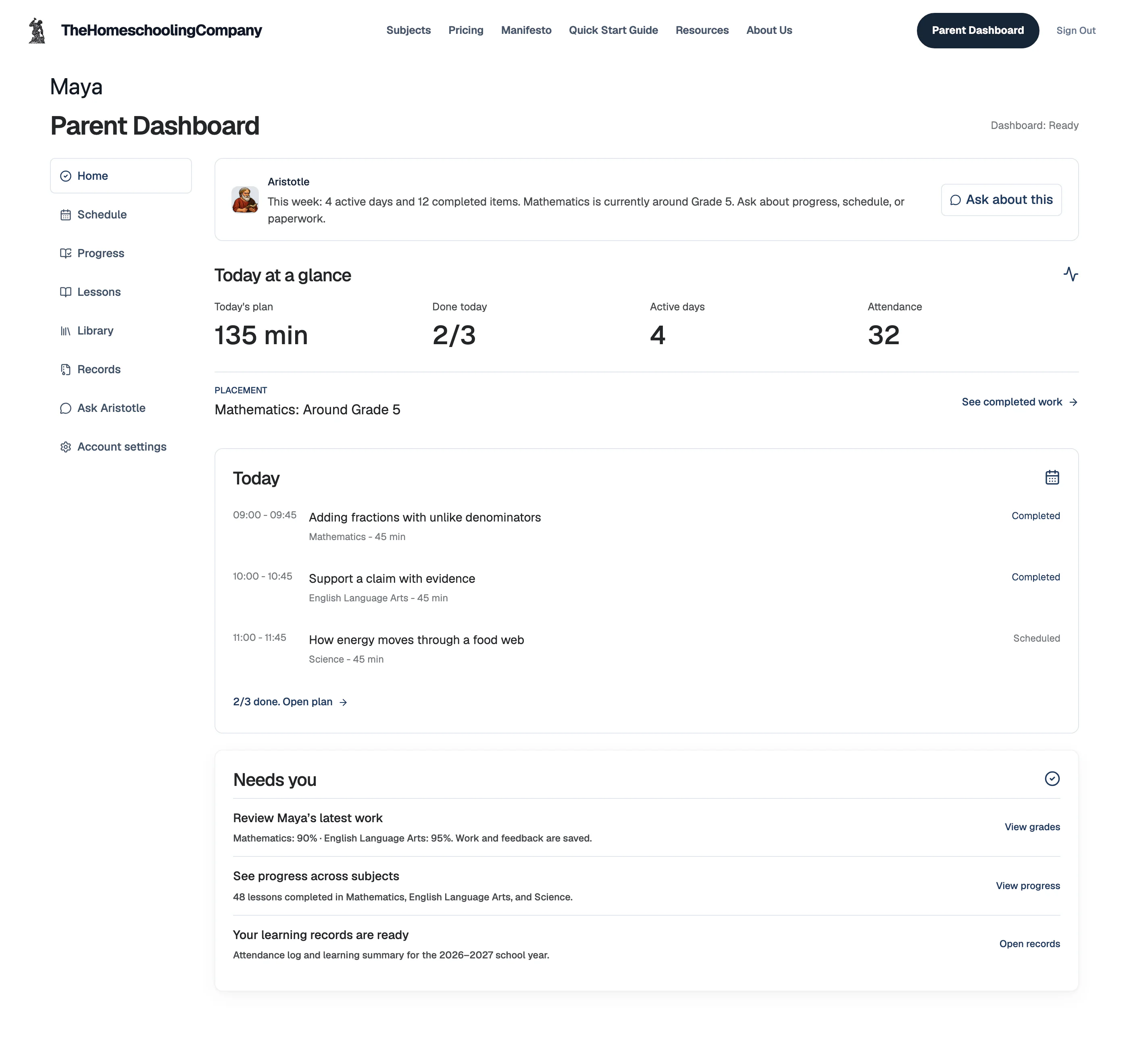
- In the Parent dashboard, create or select your learner, verify any required parental permission with a refundable $1 charge, and set your Parent PIN if needed. Choose Continue setup for that learner. Student accounts continue into their own setup.
Tell us about your learner
Fill in the profile for the learner who will use the curriculum.
What to do
- If asked who you’re setting up for, choose For my child, as their parent or guardian, or For myself if you’re the learner. Children under 13 need a parent or guardian to complete setup.
- Enter the learner’s age and name, then use Add interests to select at least one interest.
- Choose Choose a starting subject.
Open Personalize your course (optional) to change the mentor or add location, goals, and learning preferences.
Choose subjects and a plan
Single Subject includes one active subject for $49/month. School in a Box includes up to 12 for $149/month. New eligible accounts start with a 14-day trial.
What to do
- Choose your Curriculum plan if shown, then select the subjects you want.
- Choose Continue and review the learner, subjects, interests, and plan.
- Review your choices and use the edit buttons to make changes. Choose Start your 14-day free trial when offered, or Build curriculum if you already have access.
Start the curriculum trial
Checkout opens once the learner’s setup is saved to the account.
What to do
- Confirm the plan and complete checkout. The selected monthly price starts after the 14-day trial. If your child is under 13, checkout also charges a one-time $1 to verify that you are their parent or guardian, and we refund it within 3 days.
- Let checkout return you to setup for placement. An account with access to the selected curriculum can continue without another checkout.
Find a starting point for each subject
Keep your learner nearby. Each subject can have its own starting level.
What to do
- Read the setup instructions and have pencil and paper ready. Choose Start to begin placement, and have the learner answer independently.
- Setup normally saves the result and advances automatically. If asked to confirm a recommended grade, review the choice and use the save button shown.
- Repeat for each subject. After the final starting point is saved, the curriculum build begins.
Open the first lesson
Keep the setup tab open while the first lesson is written. You’ll also receive an email when it’s ready.
What to do
- Follow the progress on the build screen.
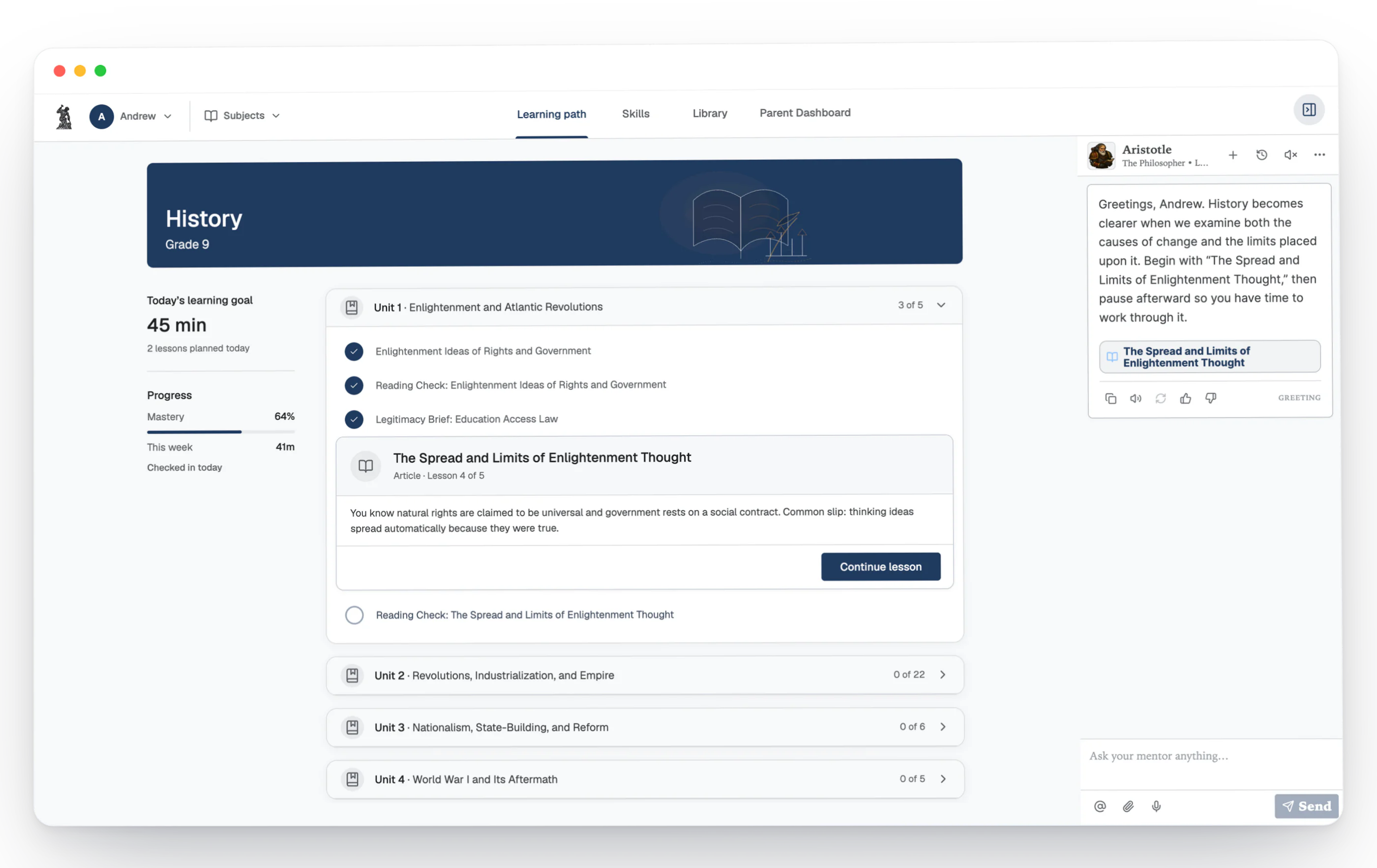
- When the first lesson is ready, choose Open. On the learner’s dashboard, open the subject’s Learning path and choose Continue lesson.
What the finished setup looks like